Getting started
Create your pharmacy account
Sign up, verify your email, accept the terms and start the free trial.
Web consoleUpdated 12 October 2026
You create the pharmacy once, on the web. Staff are added afterwards from Settings; they never sign up themselves.
Steps
- Open pharmabells.com and choose Start free trial, or go straight to
erp.pharmabells.com/register. - Enter the pharmacy name, your name, email, mobile number and a password (at least 8 characters with a letter and a number).
- Tick that you have read the Terms of Service and Privacy Policy, and that you are 18 or older. The date, time and version you accepted are recorded.
- Choose Create account. You are signed in as the owner, with one store already created and named after your pharmacy.
- Check your inbox for the verification email and open the link. Until you do, a banner reminds you; billing still works.
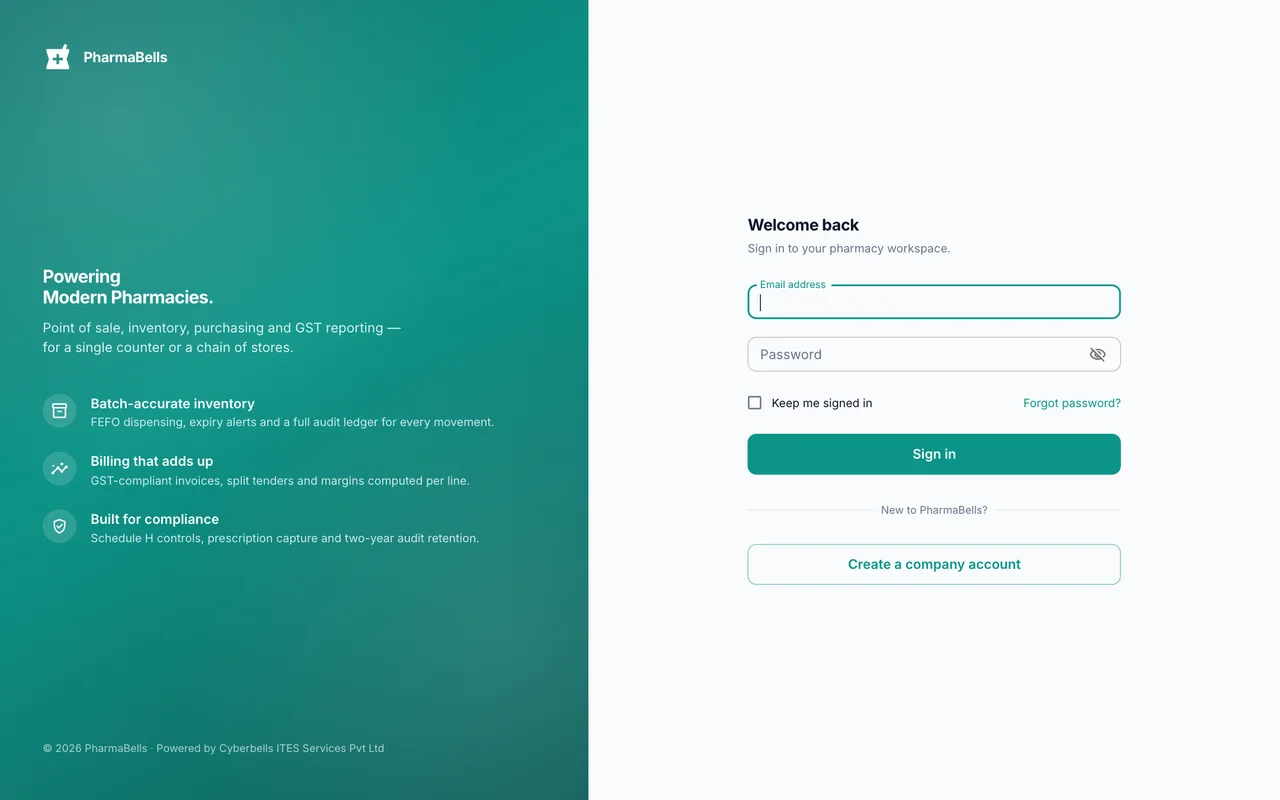
What you get
- A 14-day trial of the full product. No card is needed to start.
- One store, the owner login, and an empty catalogue ready for medicines.
- A read-only grace period of 90 days after the trial if you do not subscribe, so nothing is lost while you decide.
Common mistakes
- Using a shared or made-up email. Password resets, invoices and licence reminders go there. Use an address you read.
- Signing up twice. One pharmacy, one account. Extra branches are added as stores under Settings → Stores, not as new accounts.
- Registering from the phone app. The app only signs in. Create the account on the web first.
Still stuck? akhil.cyberbells@gmail.com