Mobile app
Install the mobile app and sign in
Get PharmaBells on Android or iPhone, sign in with your usual login, allow notifications, and set up fingerprint or face unlock.
Mobile appUpdated 12 October 2026
The app is for the people on the floor: billing at the counter, checking stock in the aisle, receiving a delivery at the back door, checking in for the day. It uses the same login and the same data as the web.
Android
- Open Google Play and search for PharmaBells, or use the link on pharmabells.com.
- Install and open.
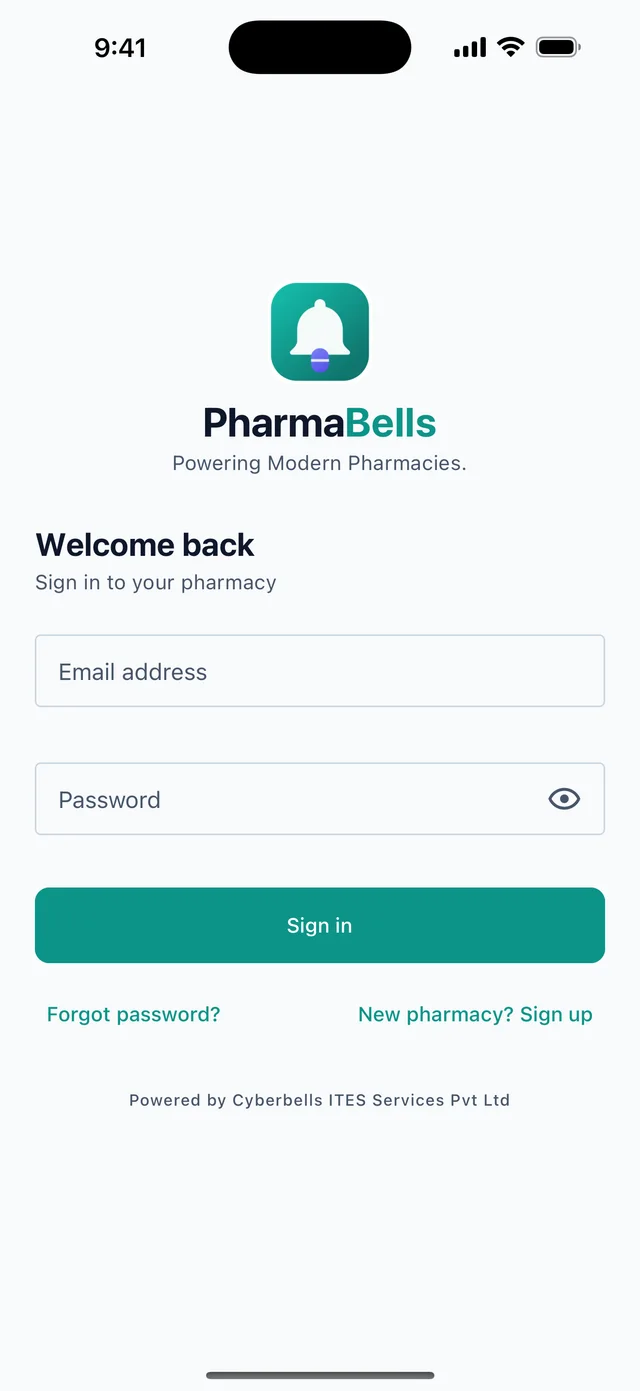
- Sign in with the email and password your administrator gave you. There is no sign-up in the app; the pharmacy is created on the web.
If your pharmacy was given an APK file instead, open it from your downloads and allow installation from this source when asked.
iPhone
- Open the App Store and search for PharmaBells.
- Install and open; sign in as above.
First run
- Notifications: allow them so low-stock, expiry and licence alerts reach you. You can change this later under Profile.
- Terms: the same acceptance popup as the web appears once.
- Store: if you work in more than one store, pick the current one under Profile. Everything you do belongs to that store.
Fingerprint or face unlock
Profile → Appearance & security → Unlock with fingerprint / Face ID. The app then asks for your biometric when it reopens instead of the password. Your session stays on the phone; nothing about your fingerprint leaves it.
What is on each tab
| Tab | What you do there |
|---|---|
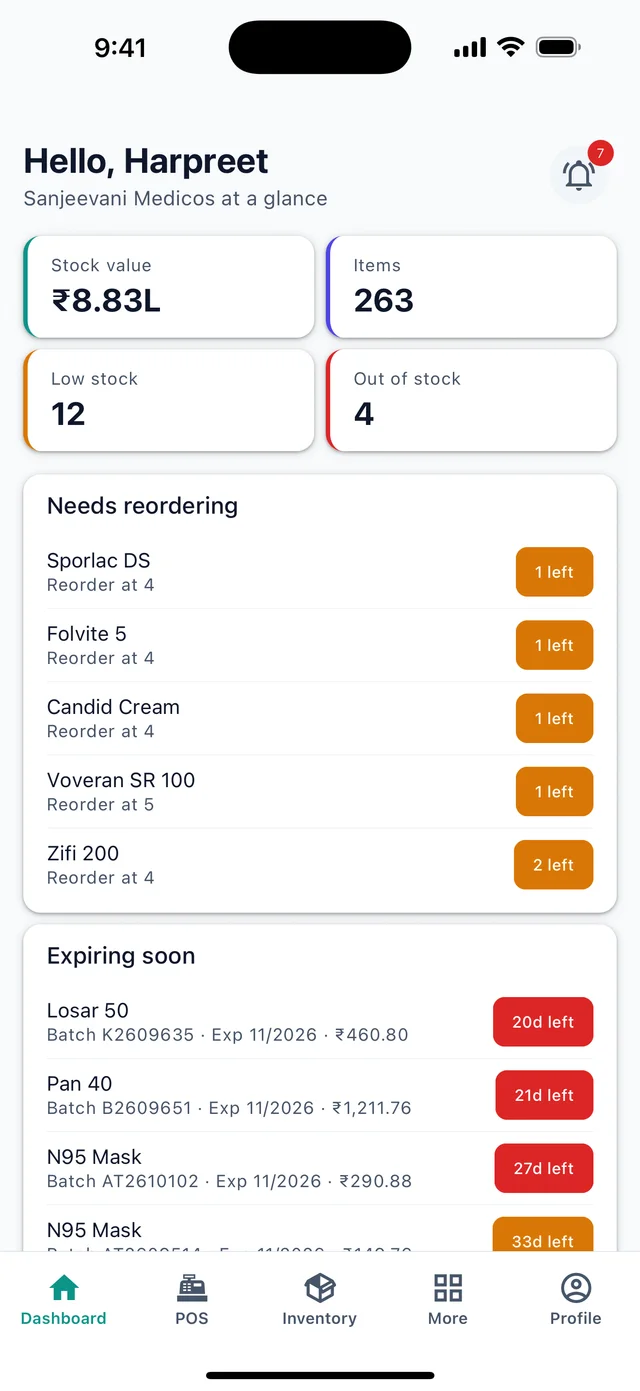
| Dashboard | Today at a glance, low stock, expiring soon, the bell |
| POS | Bill a customer |
| Inventory | Stock and batches of the current store |
| More | Sales & invoices, Medicines, Customers, Returns, Purchases, Expenses, Reports, Attendance, Documents, Notifications |
| Profile | Notifications, dark mode, biometrics, store, account |
Common mistakes
- Installing a copy on a personal phone and leaving it signed in. Sign out from Profile when you stop working, or use biometric lock.
- Expecting company settings in the app. Those are on the web; Profile links there.
← Your data: export, delete a user, close the accountUsing the app day to day: offline billing, camera scans, attendance →
Still stuck? akhil.cyberbells@gmail.com