Getting started
Add staff and choose their roles
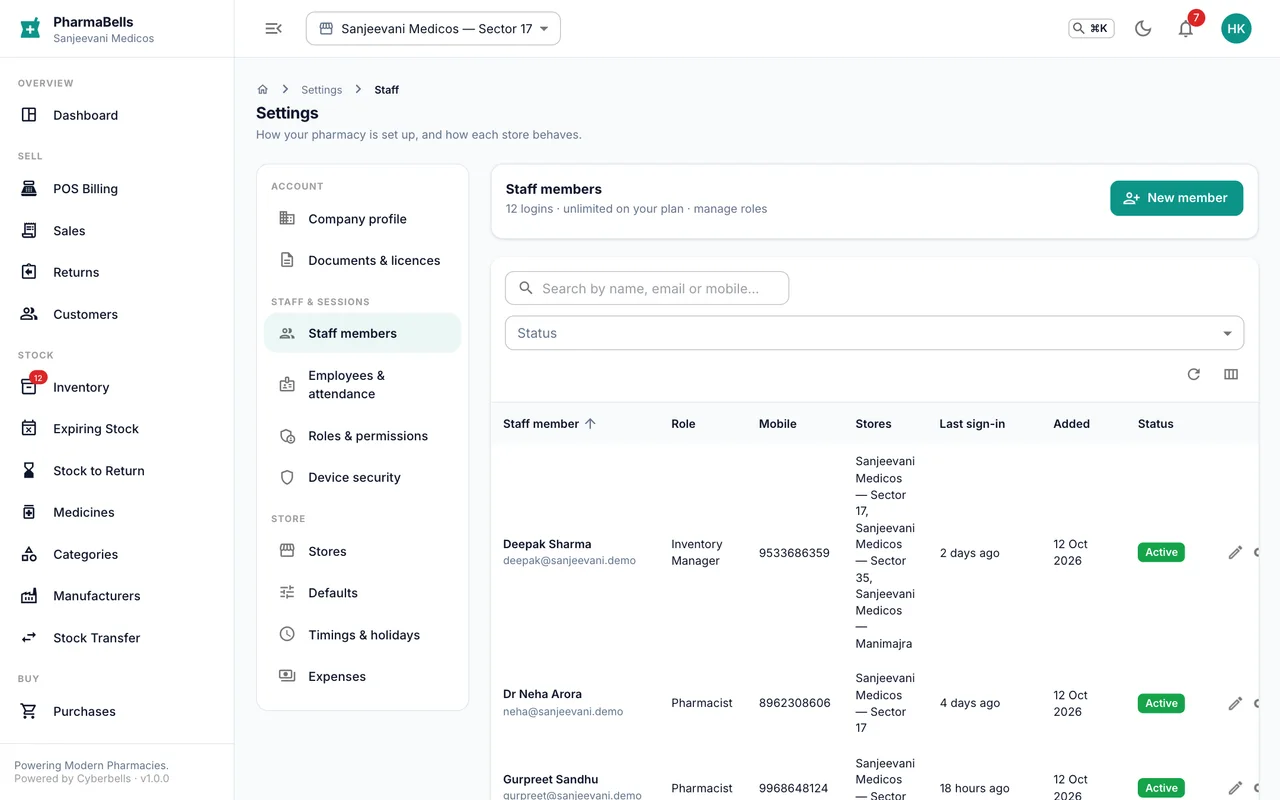
Create logins for your team, give them the right role and stores, deactivate someone who leaves, and build custom roles.
Every person who uses PharmaBells gets their own login. That is what makes the sales register, the audit log and attendance trustworthy: each bill says who made it.
Add a user
Settings → Staff & sessions → Add user
- Enter the person's name, email and mobile number.
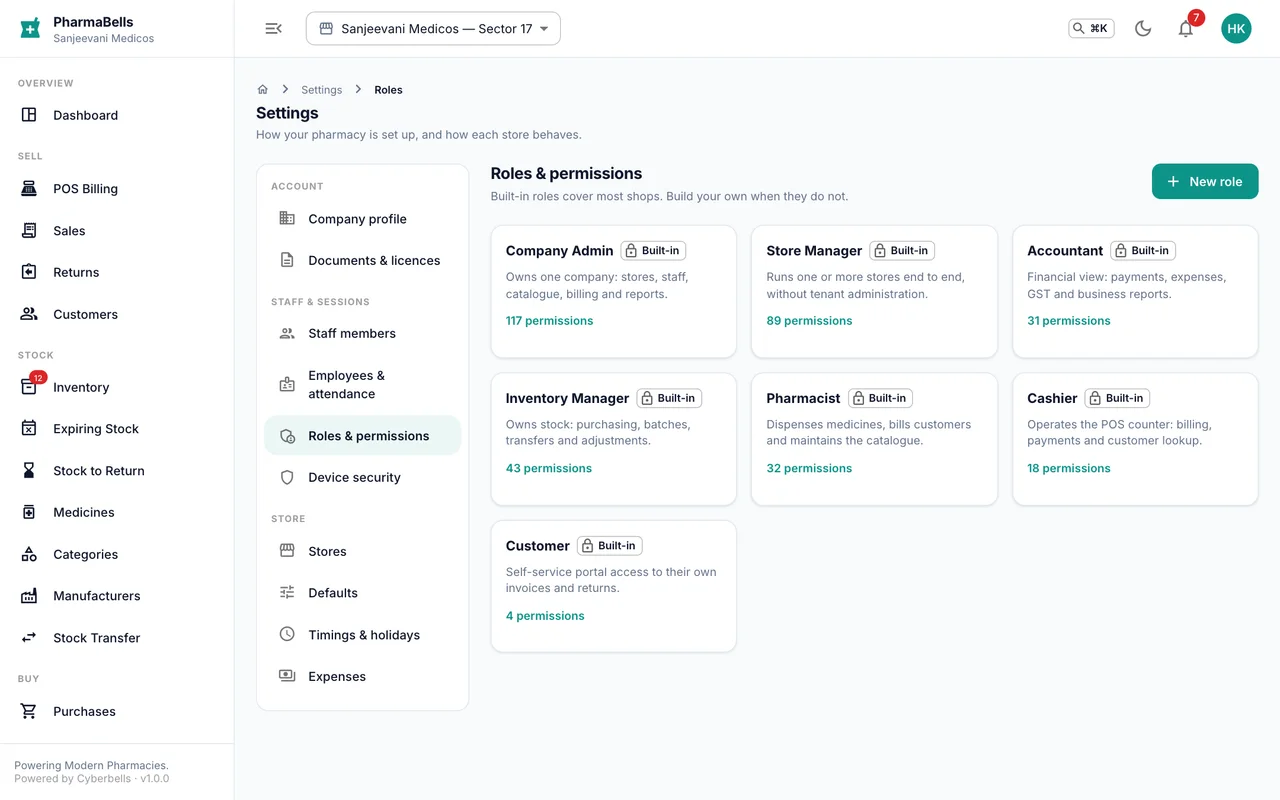
- Choose a role (see who sees what).
- Tick the stores they may work in. A cashier usually gets one; a manager may get several.
- Either set a password and tell them, or leave it blank and a temporary password is emailed to them.
- Save. They can sign in immediately on the web and the app.
Employees and attendance
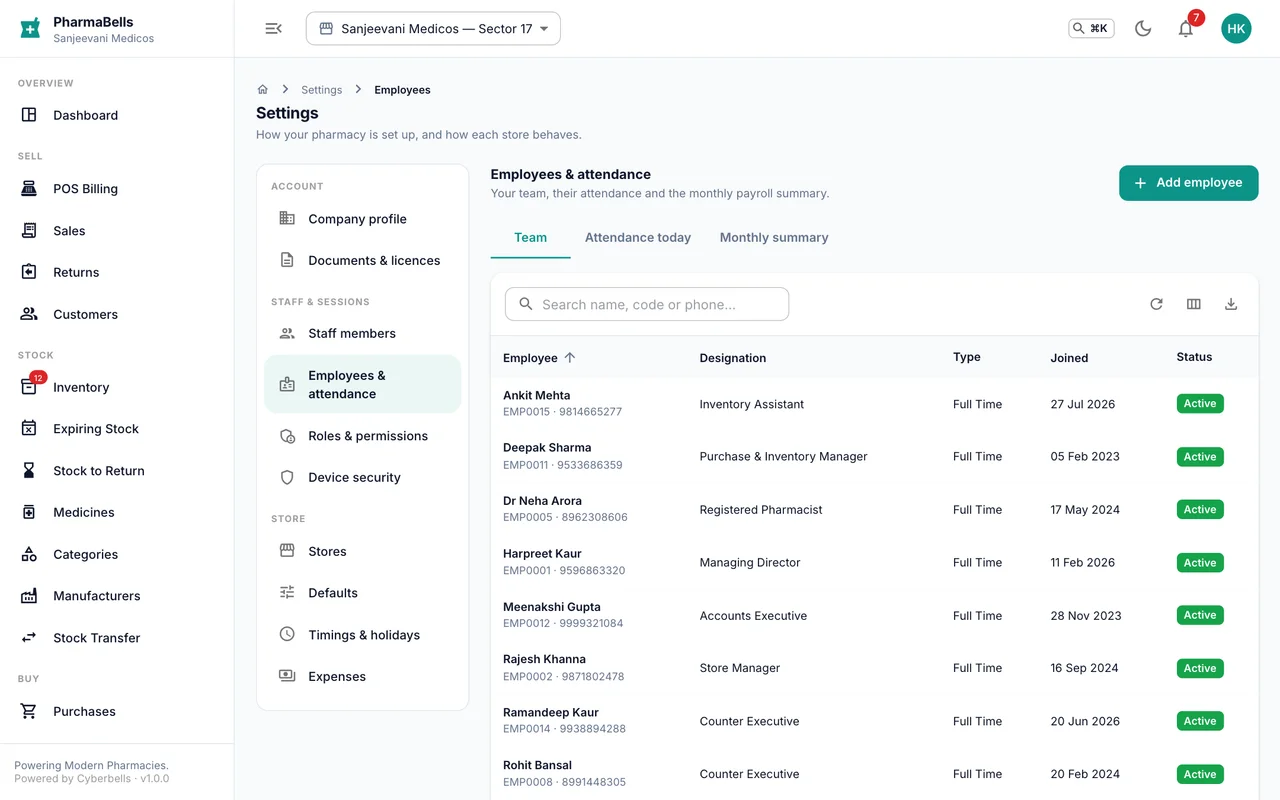
A user is a login; an employee is a person on the payroll. Most people are both. Settings → Employees holds designation, shift timings, salary and the pharmacist registration number, and is where attendance and the monthly summary come from. When you add an employee you can link them to their login so check-ins appear under their name.
When someone leaves
- Settings → Staff → open the user → Deactivate. Their sessions end at once and they cannot sign in.
- In Employees, set the resignation date.
- Do not delete the user: past bills and audit entries still point to them, and the law expects those records to stay.
Custom roles
Settings → Roles lists the built-in roles and lets you create your own, for example a "Senior cashier" who can also approve returns. Tick the permissions module by module. A role can never hold a permission that you yourself do not have.
Common mistakes
- Making everyone an administrator because it is quicker. Administrators can close the account and see every report. Give the smallest role that does the job.
- Reusing an old employee's login for a new hire. Create a new user; history must stay with the person who made it.
Still stuck? akhil.cyberbells@gmail.com