Getting started
Sign in and stay safe
Signing in on the web and the app, forgotten passwords, the terms popup, sessions and signing out everywhere.
Sign in
- Open
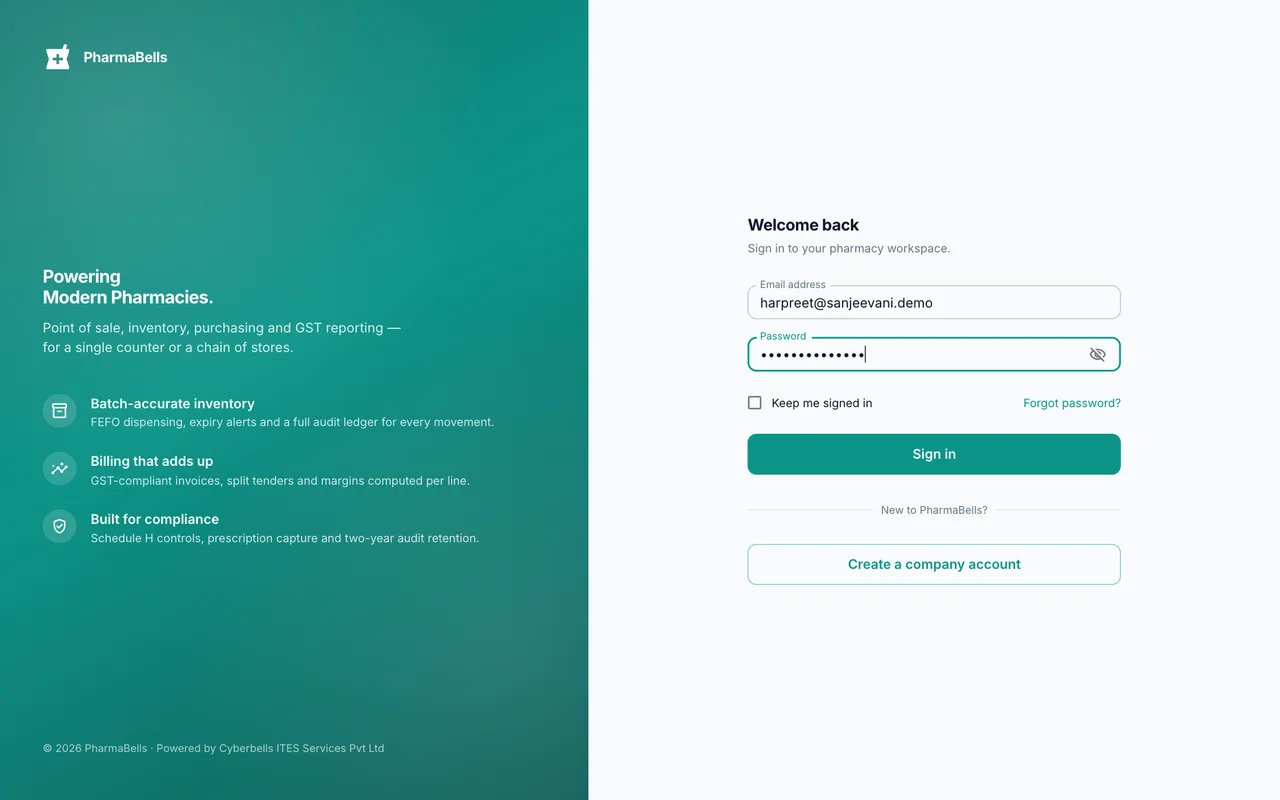
erp.pharmabells.comor the PharmaBells app. - Enter the email and password your administrator gave you. The eye button shows the password while you type it.
- Choose Sign in. On the web you land on the Dashboard; cashiers land on POS Billing.
If you work in more than one store, pick the store from the top bar on the web, or from Profile → Store in the app. Every bill and stock movement goes to the store that is selected.
Forgot your password
- On the sign-in page choose Forgot password?
- Enter your email. A six-digit code is sent to it.
- Enter the code and a new password. Every other device you were signed in on is signed out.
Codes expire after 10 minutes. If nothing arrives, check spam, then ask your administrator to confirm the email on your user record.
The terms popup
The first time you sign in, and again whenever the Terms of Service or Privacy Policy change, a popup asks you to read and accept them and to confirm you are 18 or older. The app and the web show the same popup. Until you accept, the screen behind it stays locked.
Sessions
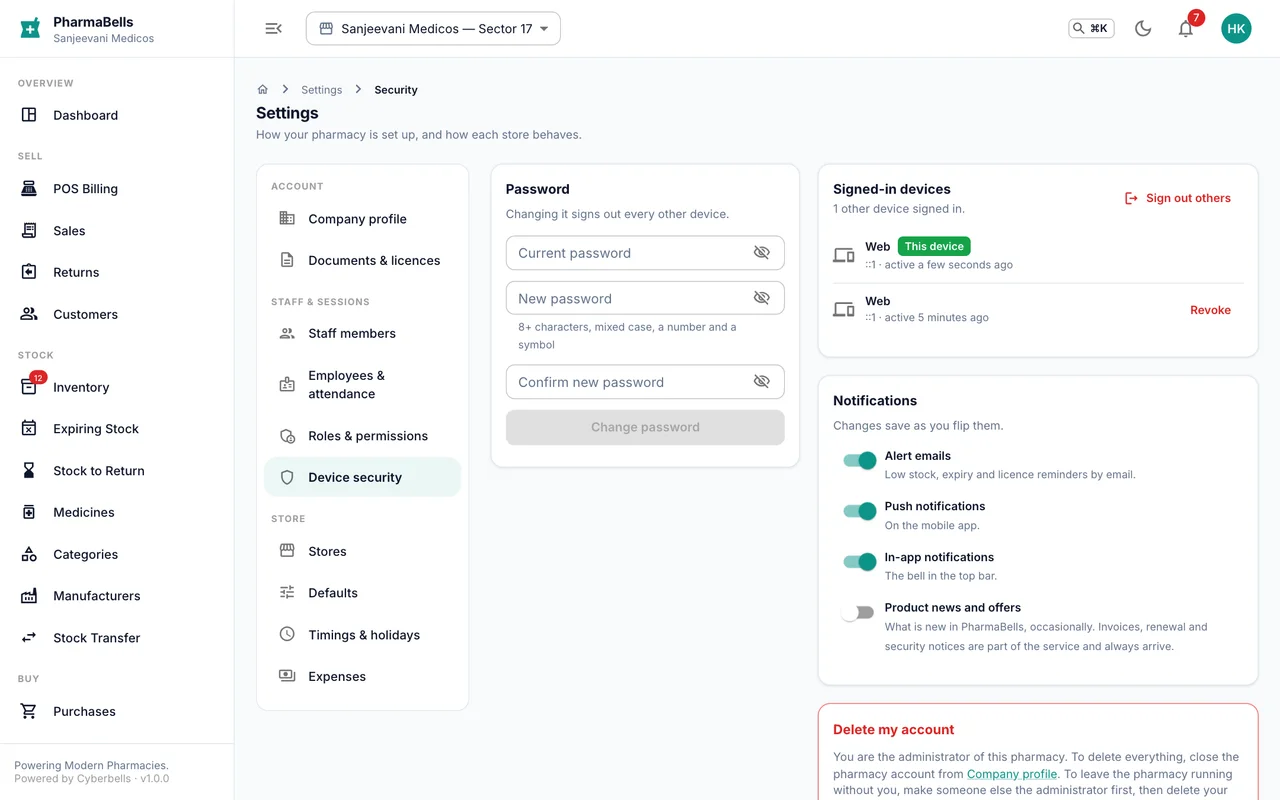
Settings → Security → Sessions lists every device signed in to your account, with the last time it was used. Choose Sign out next to a device you do not recognise, or Sign out everywhere to end all of them except the one you are on.
On the phone
- Unlock with fingerprint or face. Profile → Appearance & security → turn on the unlock toggle. The app then asks for your fingerprint or face when it reopens, instead of the password.
- Stay signed in. The app keeps you signed in until you sign out or an administrator removes your login.
Common mistakes
- Sharing one login between staff. Every bill records who made it. Give each person their own user; it takes a minute in Settings → Staff.
- Typing the email with a capital letter or a trailing space. Emails are matched exactly.
- Leaving a counter PC signed in overnight. Use Sign out from the avatar menu, or set up a cashier login that cannot see reports.
Still stuck? akhil.cyberbells@gmail.com